


.jpg)


🛠️ Setting Up
- Christopher Butson

- Dec 1, 2025
- 1 min read
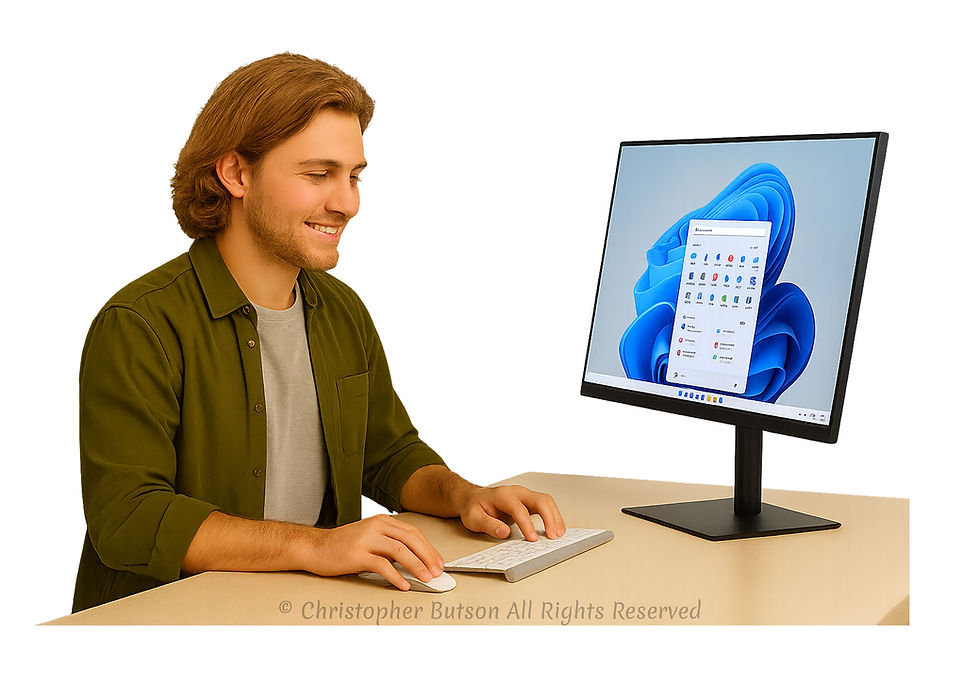
Once your laptop powers on, you’ll be guided through a few setup steps. These are designed to help you personalise your device and get it ready to use.
🌍 Choose Your Language and Region
You’ll be asked to select your language (like English UK) and your country or region. This helps your laptop show the correct date, time, and keyboard layout.
📶 Connect to Wi-Fi
Next, choose your home Wi-Fi from the list and enter the password. This connects your laptop to the internet so it can finish setup and download updates.
👤 Sign in with a Microsoft Account
You’ll be asked to sign in with a Microsoft account — this could be an Outlook, Hotmail, or even a Gmail address if it’s linked. If you don’t have one, you can create one during setup. This account helps you access things like email, OneDrive, and the Microsoft Store.
🔐 Privacy Settings
You’ll see a few options about privacy — like location, diagnostics, and advertising. You can accept the defaults or adjust them to suit your comfort level.
🌟 Tip: If anything feels confusing, take your time. You can always ask someone to sit with you, or come back to settings later.


Comments